Press HOME on your remote and look at the start screen. Pick what you see below and we show you which app to use.
Still not sure? If you cannot find a Google Play Store anywhere, your Hisense runs VIDAA. You can also send us your model number (sticker at the back) on WhatsApp and we check it for you.
Fastmate V2 is our own player for Android-based devices, so it runs on Google TV and Android TV but not on VIDAA. You need an active Fast-Forward subscription, because the app is a player and does not include channels.
| System | Recommended app | How you install it | Support |
|---|---|---|---|
| Google TV | Fastmate V2 | TVBRO browser, then download from our downloads page | Full |
| Android TV | Fastmate V2 | TVBRO browser, then download from our downloads page | Full |
| VIDAA | Fast-Forward box | Connect one of our boxes via HDMI | Via box |
Fastmate V2 is not in the Google Play Store. You install it through the free TVBRO browser, straight from our secure downloads page.
- Press HOME and open the Google Play Store. On Google TV, go to the Apps tab and choose Search for apps.
- Search for TVBRO, select it and choose Install.
- Wait until the button changes to Open.
- Google TV only: go to Settings, System, About, and click Android TV OS build 7 times until you see a message that developer mode is on.
- Go to Settings, Apps, Security & restrictions, Unknown sources.On Hisense Android TV models this sits under Device preferences. The name can differ slightly per model.
- Switch on TVBRO in the list.
- Open TVBRO and go to fast-forward.online/downloads/
- Choose Fastmate V2. The page is protected, so ask your Fast-Forward team member for the current password.
- Download the Fastmate V2 file and confirm Install when the TV asks.
- Open Fastmate V2 once the installation is done.
- On the welcome screen choose Add playlist, then select your provider from the list or choose Service.
- Enter the details you received from Fast-Forward. Type them exactly, without extra spaces.
Server: http://XXXXX.YYY
Username: XXXX
Password: XXXX - Tick both Include TV channels and Include VOD, then choose Next.
- Let the channel list and programme guide load completely, then choose Done.
VIDAA is not Android, so Fastmate V2 cannot be installed on it, and VIDAA is not supported. The easy fix: connect one of our boxes to your Hisense via HDMI. Your TV simply becomes the screen, and you get the full experience on the box.
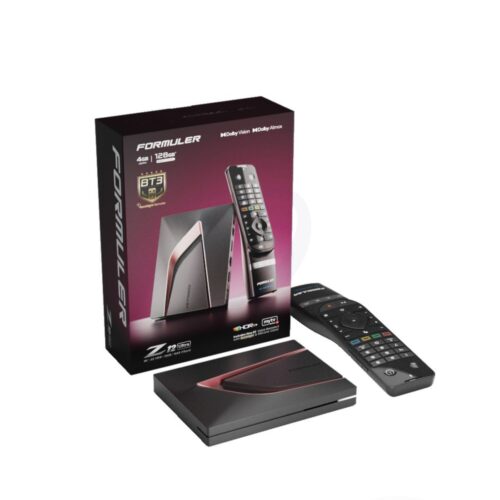 FORMULER
Latest flagship model. Android 12, 4GB RAM, 128GB storage. Compatible with MTO3, Fastmate V2 and all major streaming apps.
 XSARIUS
Fastest zapping model from Xsarius. Bluetooth remote with backlight and silicon case included.
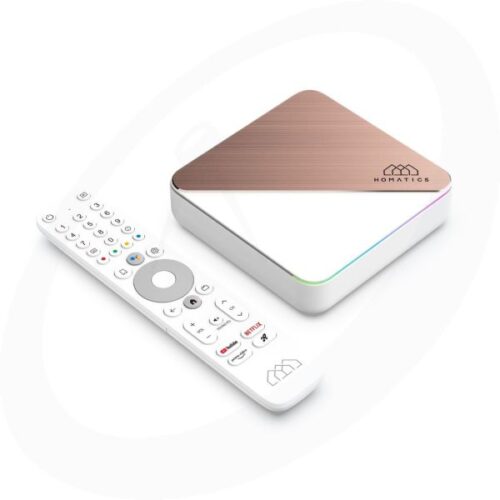 HOMATICS
4K with Dolby Vision & Atmos. Netflix, Disney+ and Prime Video certified. Wi-Fi 6, 4GB RAM, 32GB storage.
- Connect the box to a free HDMI port on your Hisense and plug in the power adapter.
- Connect a network cable for the most stable picture, or use Wi-Fi during the box setup.
- Press the Input button on your Hisense remote (Source or the input icon) and choose the HDMI input the box is connected to.
- Our boxes come pre-configured. Open the app, and if asked, enter the subscription details you received from Fast-Forward.
Change one thing at a time and test after each change. That way you know what fixed it.
| What you see | Likely cause | What to do |
|---|---|---|
| Google TV shows no apps or Play Store | The TV was set up as Basic TV, without a Google account | Choose Set up Google TV on the home screen and sign in with a Google account |
| No Google Play Store anywhere | Your Hisense runs VIDAA | Use a Fast-Forward box (Route B) |
| TVBRO will not install the Fastmate V2 file | Unknown sources is off for TVBRO | Repeat Route A, step 2 |
| Downloads page asks for a password | The page is protected | Ask your Fast-Forward team member |
| Fastmate V2 says connection refused | Typo in server, username or password | Retype the details, check for spaces |
| Channels play, but the guide is empty or wrong | Wrong date, time or time zone on the TV | Turn on automatic date and time, then refresh the guide |
| Picture stutters or buffers | Weak Wi-Fi or slow connection | Use a network cable or 5 GHz Wi-Fi, restart the router |
| TV freezes or reacts slowly | Memory full or system hang | Unplug the TV for 2 minutes, then try again |
If all of these work, you are ready to go.
- A live channel plays for a few minutes without stopping
- Sound and picture stay in sync
- Switching channels works with the remote
- The guide shows the programme that is on now
- Films and series open from the VOD menu
- After closing and reopening the app, everything is still there
Short answers to what Hisense owners ask us most.
Which Hisense TVs work with Fastmate V2?
Why can't I find Fastmate V2 in the Play Store?
Does the app include channels?
When is a separate Android TV box the better choice?
Can I test it before I buy?
Send us your model number or a photo of your screen via WhatsApp or Discord. Every day from 08:00 to 21:00, in Dutch and English.