Tutorials / Windows 11
Watching on a Windows 11 PC or laptop? IBO Player Pro is the app we support on Windows 11. Want Fastmate V2 on your computer? That is possible with an Android emulator, for users who like a technical challenge.
Pick an option to see what it means for you. No preference? Go for IBO Player Pro: it is the easiest and fully supported by our team.
Using a Mac? See our Apple guide. On a Mac with an Apple chip, many iPhone and iPad apps from the App Store also run.
You install the app yourself from the Microsoft Store. We then activate it and link your subscription for you.
- Open the Microsoft Store in Windows 11.
- Search for IBO Player Pro and choose Get or Install.Several apps with similar names exist. The right app refers to the website iboproapp.com. Not sure? Send us a screenshot first.
- Open the app and allow access to media if Windows asks for it.
- The start screen shows a MAC address and a Device Key. Take a screenshot or write both down, and keep them safe.
- Order your licence via the IBO Player Pro page if you do not have one yet.Not sure yet? The app can be used free for 6 days, so you can test it first.
- Send the MAC address and Device Key to your Fast-Forward team member on WhatsApp or Discord. We activate the app and link your subscription.
- Close the app completely and open it again. Your channels, films and series now appear.
LDPlayer is a free Android emulator: it runs a virtual Android device in a window on your PC. Inside it you can install Fastmate V2, just like on an Android box. It takes more steps, and you may need to change a setting in your PC's BIOS.
- Windows 11, 64-bit
- Virtualization (VT) switched on
- A Google account for the Play Store
- Your Fast-Forward details and download password
- Open Task Manager (Ctrl + Shift + Esc), go to Performance and choose CPU.
- Check the line Virtualization. Enabled? Go to step 2.
- Disabled? Restart the PC, open the BIOS or UEFI and switch on Intel Virtualization Technology, VT-x, SVM or AMD-V.The name and the key to open the BIOS differ per PC brand. LDPlayer also shows a help screen when VT is off.
- Download LDPlayer only from the official website ldplayer.net and run the installer.
- Start LDPlayer, open the Play Store and sign in with your Google account.
- In the LDPlayer settings, set the resolution to Tablet (landscape) for a TV-like picture.
- On your PC, go to fast-forward.online/downloads/ and choose Fastmate V2. Ask your Fast-Forward team member for the current password.
- Download the Fastmate V2 file to your PC.
- Drag the file onto the LDPlayer window. LDPlayer installs it automatically.
- Open Fastmate V2, choose Add playlist and select your provider or Service.
- Enter the details you received from Fast-Forward, tick Include TV channels and Include VOD, and choose Next.
- Use the arrow keys, Enter and Esc on your keyboard as a remote control. The mouse works too.
Username: XXXX
Password: XXXX
Does your monitor have an HDMI input? Then you do not need an emulator. Connect one of our pre-configured boxes and get the full Fastmate V2 experience with a real remote control, independent of your PC.
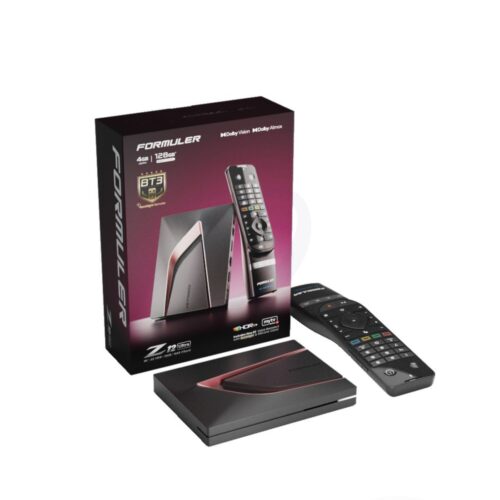 FORMULER
Latest flagship model. Android 12, 4GB RAM, 128GB storage. Compatible with MTO3, Fastmate V2 and all major streaming apps.
 XSARIUS
Fastest zapping model from Xsarius. Bluetooth remote with backlight and silicon case included.
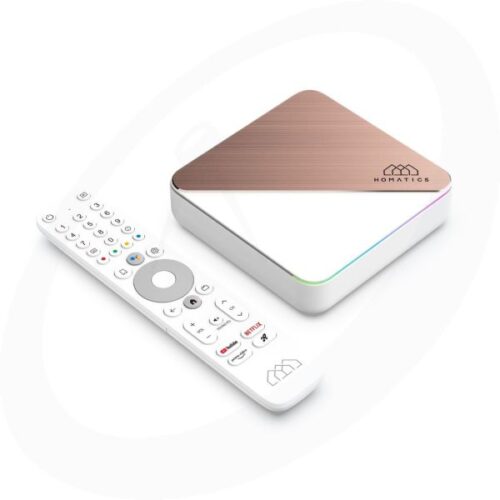 HOMATICS
4K with Dolby Vision & Atmos. Netflix, Disney+ and Prime Video certified. Wi-Fi 6, 4GB RAM, 32GB storage.
- Connect the box to the HDMI input of your monitor and plug in the power adapter.
- Choose the HDMI input with the buttons on your monitor.
- No speakers in your monitor? Use headphones or speakers on the audio output of the monitor, or a Bluetooth headset with the box.
Change one thing at a time and test after each change. That way you know what fixed it.
| What you see | Likely cause | What to do |
|---|---|---|
| IBO Player Pro shows no channels | Subscription not linked yet | Send MAC and Device Key, then restart the app |
| IBO Player Pro starts as a trial again | The MAC address changed after a reinstall | Send us your old and new MAC address and Device Key |
| LDPlayer will not start or shows a VT warning | Virtualization is switched off | Switch on VT in the BIOS or UEFI (Route B, step 1) |
| Fastmate V2 does not install in LDPlayer | The file did not download completely | Download the file again and drag it onto the LDPlayer window |
| Picture stutters in LDPlayer | Not enough CPU or memory for the emulator | Give LDPlayer more CPU cores and RAM in its settings, close other programs |
| Guide shows the wrong times | Wrong clock or time zone in Windows 11 | Set time and time zone to automatic in the Windows 11 settings |
| Picture buffers | Weak Wi-Fi or slow connection | Use a network cable or 5 GHz Wi-Fi, restart the router |
Short answers to what Windows 11 users ask us most.
Which option is the easiest?
Can I use Fastmate V2 on Windows 11?
Can't Windows 11 run Android apps by itself?
Is LDPlayer free and safe?
I have a Mac. What now?
Can I test it before I buy?
Send us your model number or a photo of your screen via WhatsApp or Discord. Every day from 08:00 to 21:00, in Dutch and English.